Role Navigation
Swipe roles, tap to open submenuTeacher • Dashboard
Standalone submenu content with role-aligned workflow and execution checkpoints.
Overview
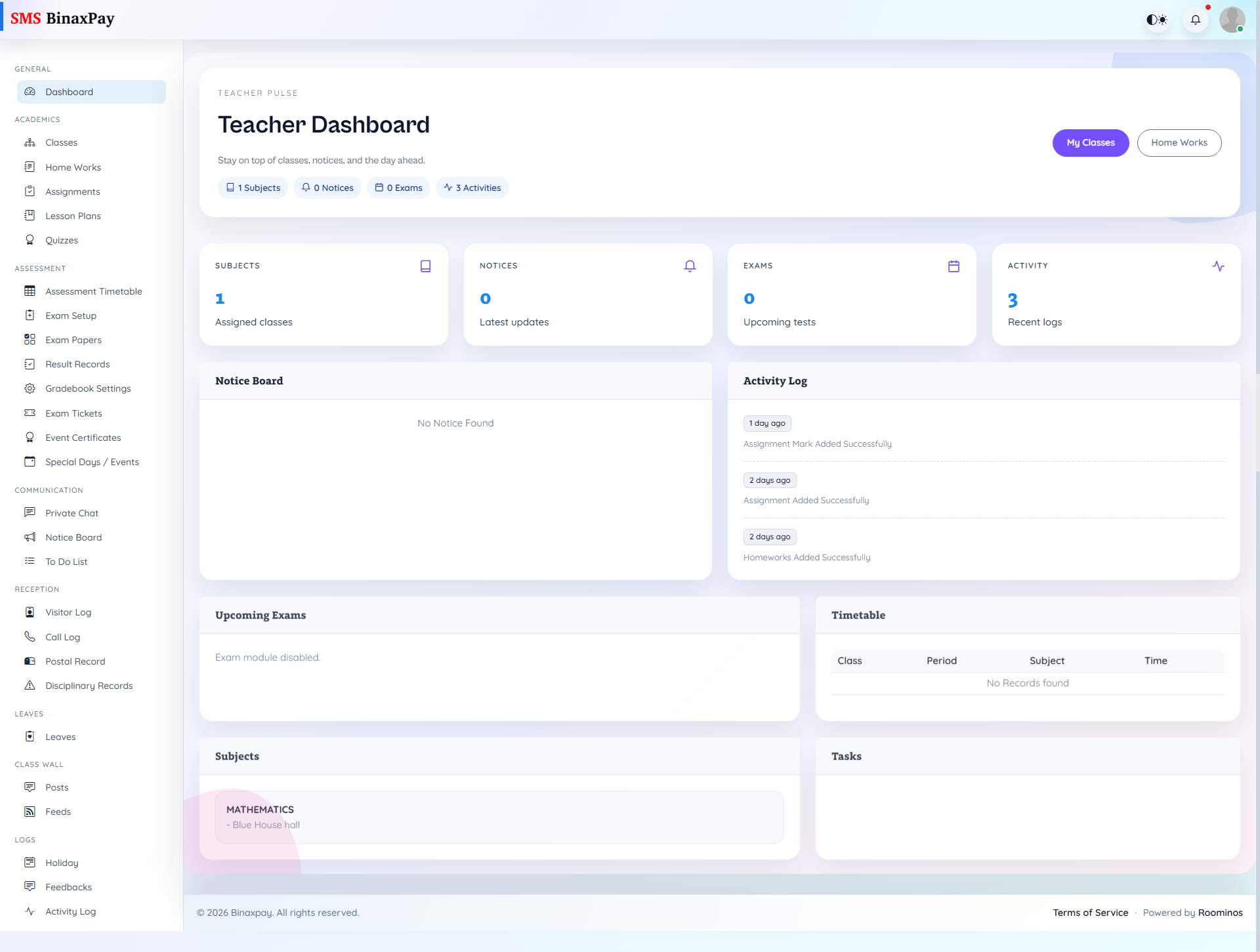
Dashboard is the teacher’s daily control panel and should be treated as a start-of-day triage page, not as a one-time summary screen. It provides exam, notice, timetable, and activity context so the teacher can decide whether to prioritize instruction, assessments, communication, or administrative updates. Teachers should use dashboard quick actions to jump directly into teaching workflows once urgent items are identified.
Workflow Execution Steps
- Open dashboard and review today tasks, notices, and timetable context.
- Identify urgent classes and deadline-sensitive actions.
- Route to owning module (homework, assessment, or communication).
- Return to dashboard for end-of-day closure verification.
Reference Screenshots